Get started
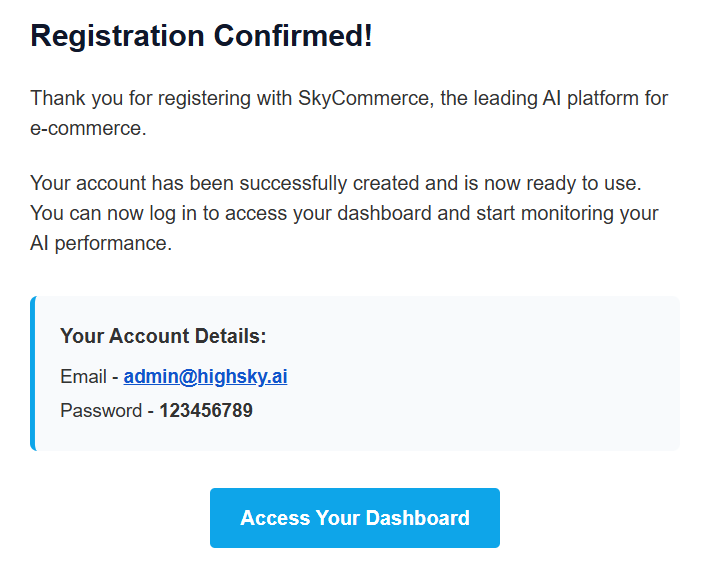
- You will receive an email from HighSky AI with your login credentials.
- The email contains your account details: email address and temporary password.
- Click “Access Your Dashboard” in the email, or go to the login page to sign in.
Log in to your dashboard
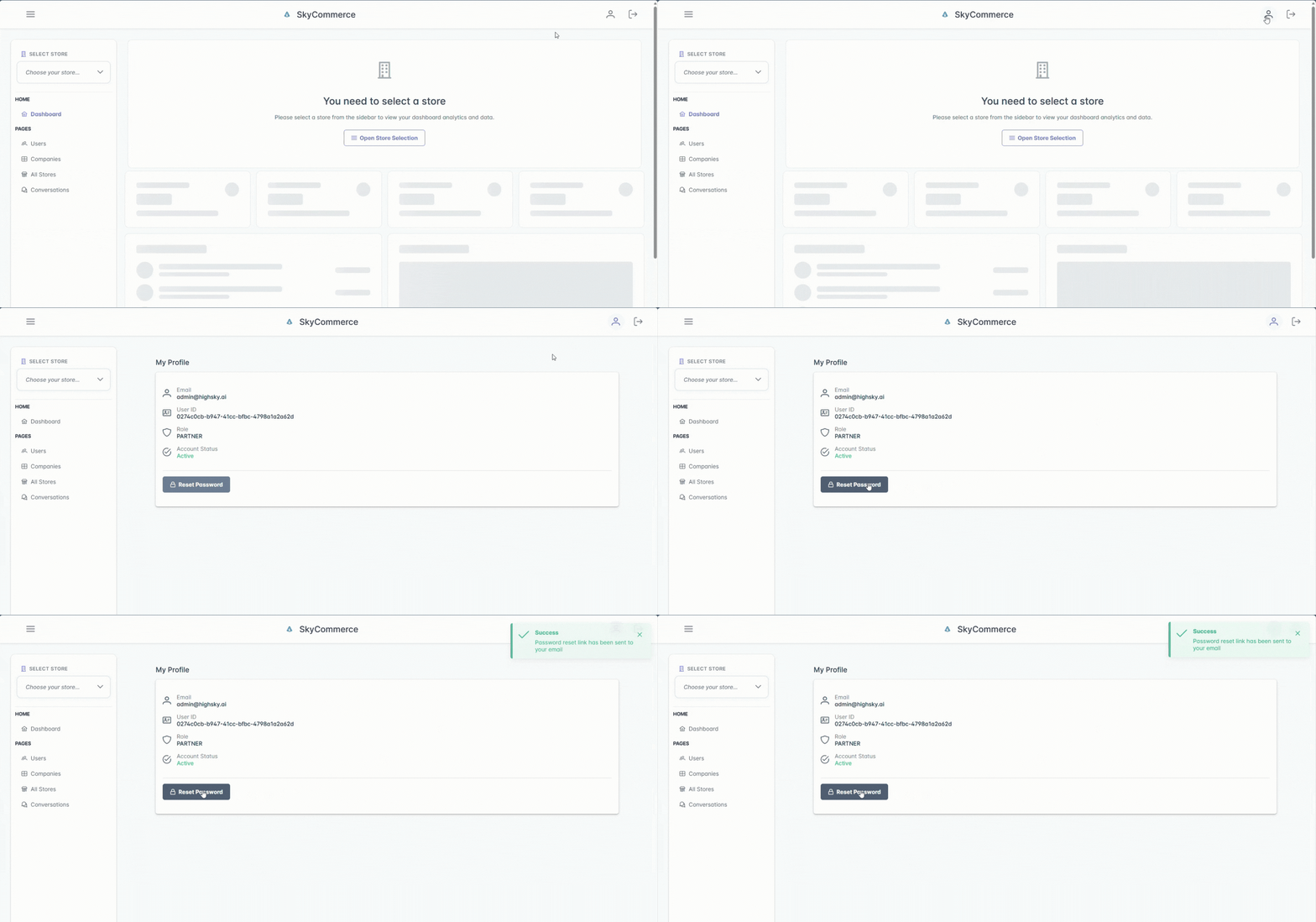
- Click on "Access Your Dashboard" and login to the admin panel.
- Send a reset password request (use "Forgot password?" on the Sign In page).
- You'll receive an email with a password reset request.
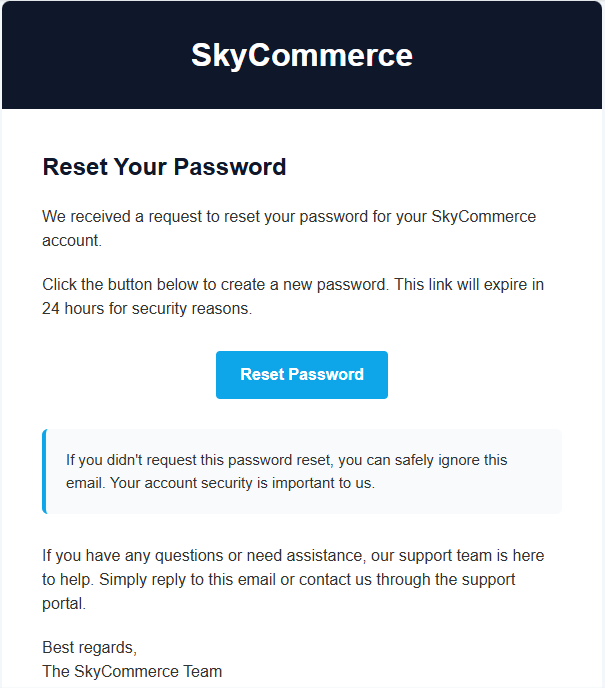
- Click on "Reset Password" and create a new password.
Your Store
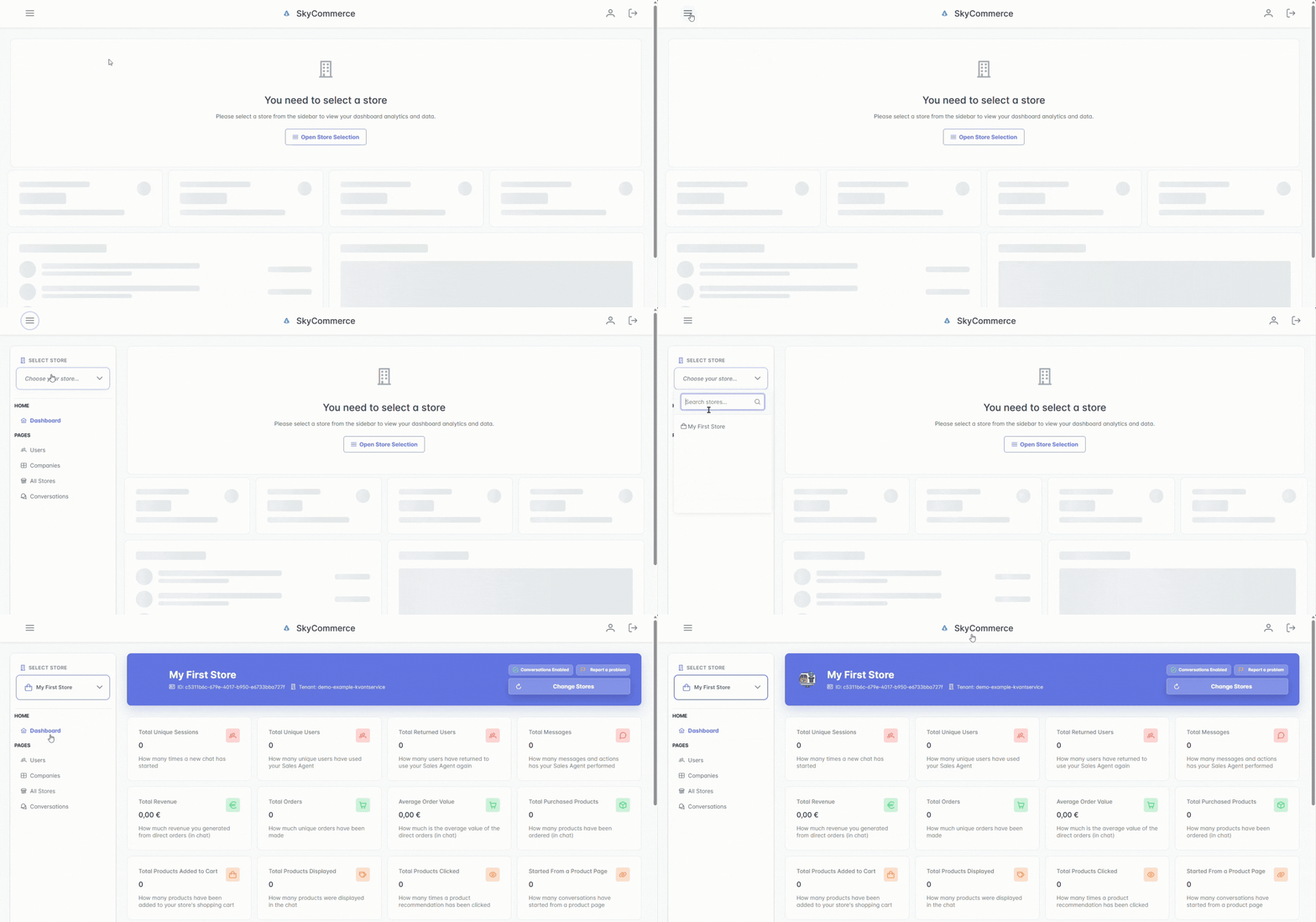
- On the left side, click the hamburger menu (☰) and select your store.
Dashboard
The Dashboard page shows your analytics for the selected store.
The number of times a new chat has been started. Each time a customer opens the chat widget and begins a new conversation, it counts as one session. This helps you understand how much traffic your Sales Agent is getting.
The number of unique users who have used your Sales Agent. If the same person starts multiple chats, they are still counted as one unique user. This gives you a clear picture of your actual audience size.
The number of users who have come back to use your Sales Agent again. A high number here means customers find the Sales Agent useful enough to return. This is a good indicator of engagement and trust.
The total number of messages and actions your Sales Agent has performed. This includes all responses, product recommendations, and other interactions. It reflects how active and engaged your customers are in conversations.
The total revenue generated from direct orders placed through the chat. When a customer completes a purchase directly inside the conversation, the order value is tracked here.
The number of unique orders that have been placed directly through the chat. Each completed purchase counts as one order, regardless of how many products it contains.
The average value of direct orders placed through the chat. This is calculated by dividing Total Revenue by Total Orders. It helps you understand how much customers typically spend per order.
The total number of individual products that have been ordered through the chat. One order can contain multiple products, so this number can be higher than Total Orders.
The number of products that have been added to your store's shopping cart through the Sales Agent. This includes products that were added but not necessarily purchased.
The number of products that were shown to customers in the chat. Every time the Sales Agent recommends or displays a product, it is counted here. This shows how actively your catalog is being presented.
The number of times a customer has clicked on a product recommendation in the chat. Comparing this with Total Products Displayed gives you the click-through rate — how often displayed products catch the customer's attention.
The number of conversations that were started while a customer was browsing a specific product page. This tells you how often customers need help or more information while looking at a product.
The number of times a conversation has been transferred to a human operator. This happens when the Sales Agent cannot resolve the customer's request on its own. A lower number means the AI is handling more on its own, while a higher number may indicate areas where the Sales Agent needs improvement.
Company & Store
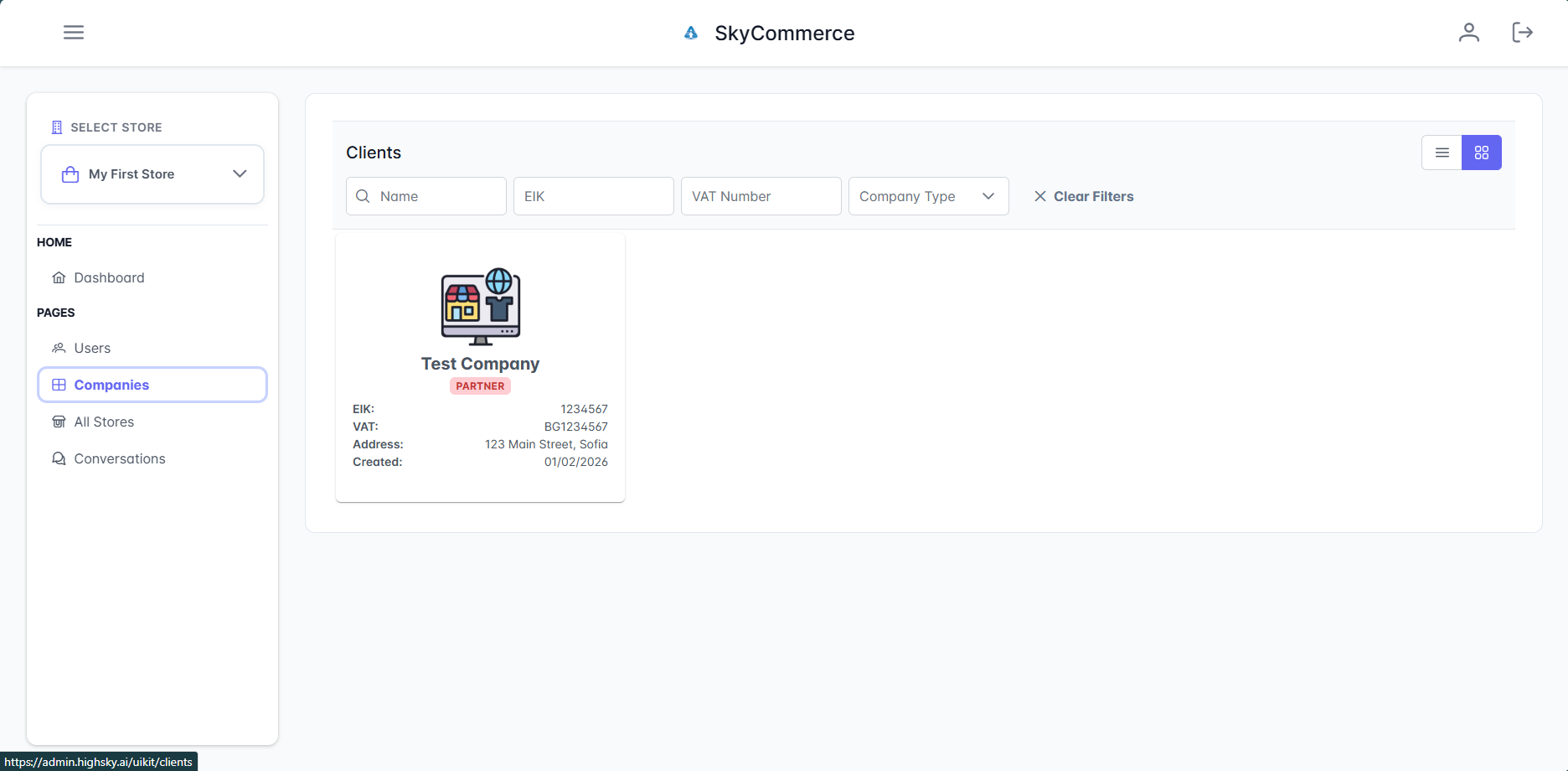
- On the Companies page, you can see your company details.
Stores
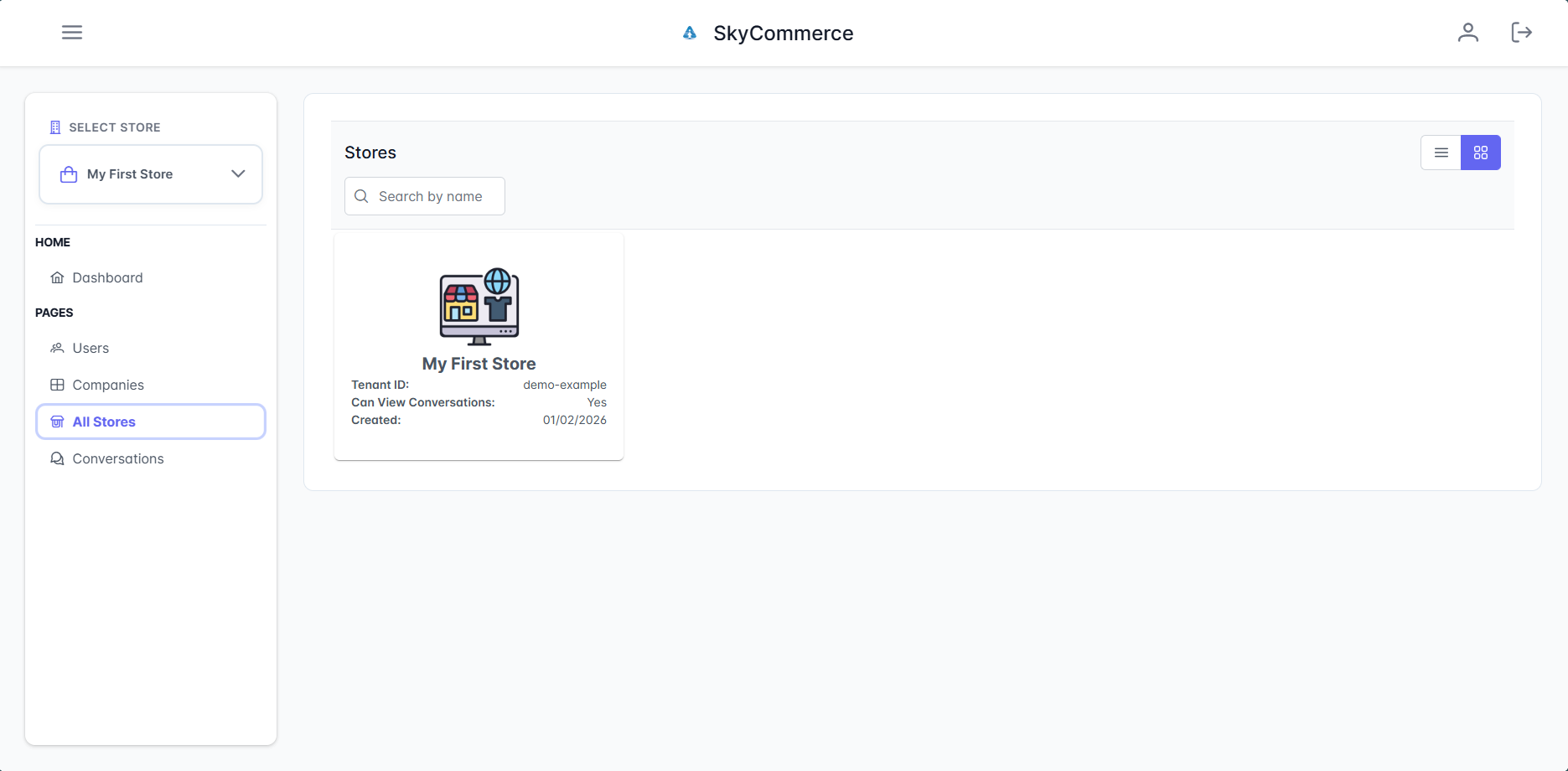
- On the Store page, you can see all your stores (if you have more than one) and all the details about the stores.
Conversations
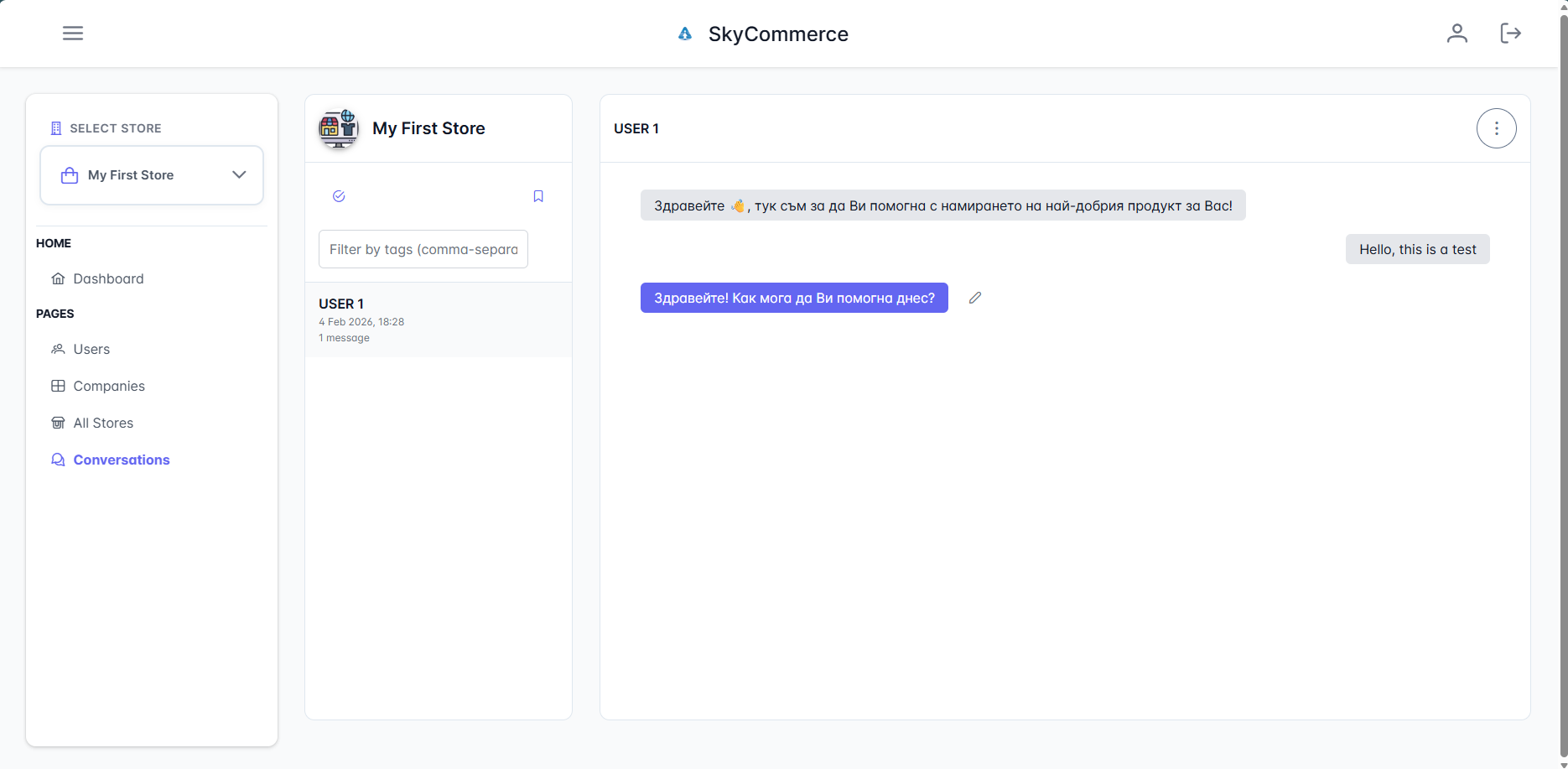
- On the Conversations tab, you can see all conversations.
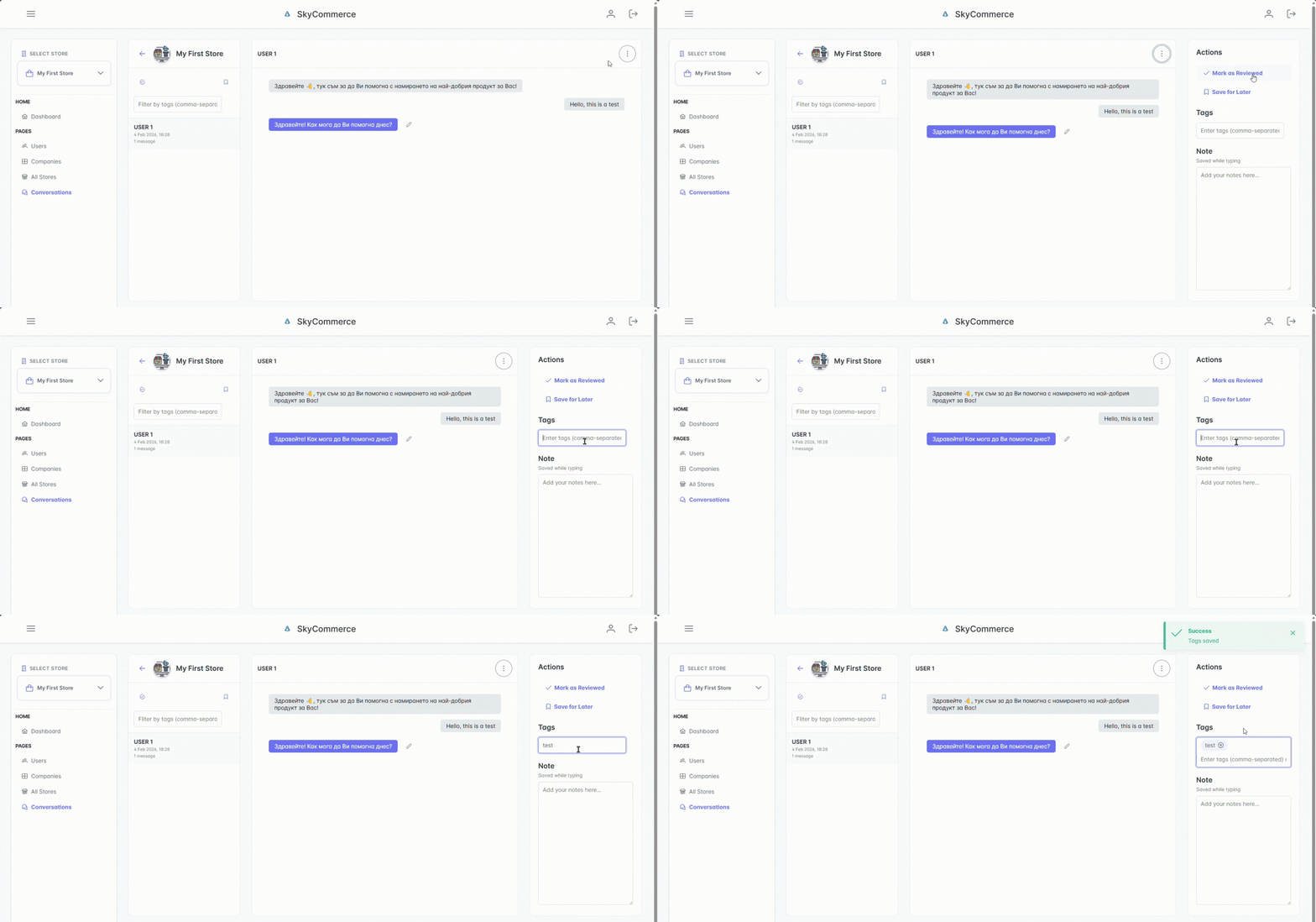
- Click the three dots (⋮) on the right side of any conversation to open a menu where you can:
- Tag the conversation with your own custom tags
- Mark it as reviewed
- Save it for later
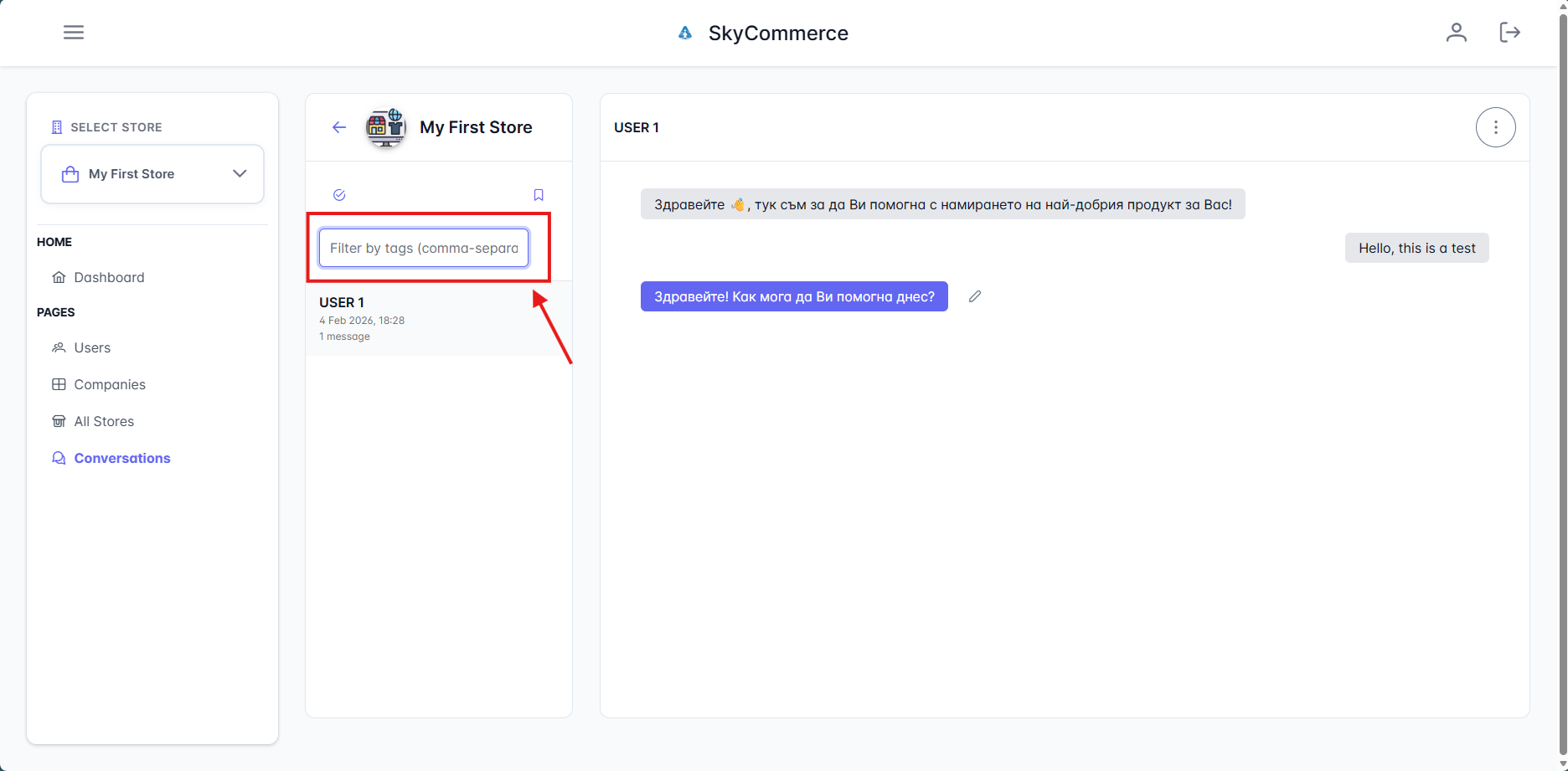
- Use the search bar on the left side to search conversations by tag.
Make corrections to agent's response
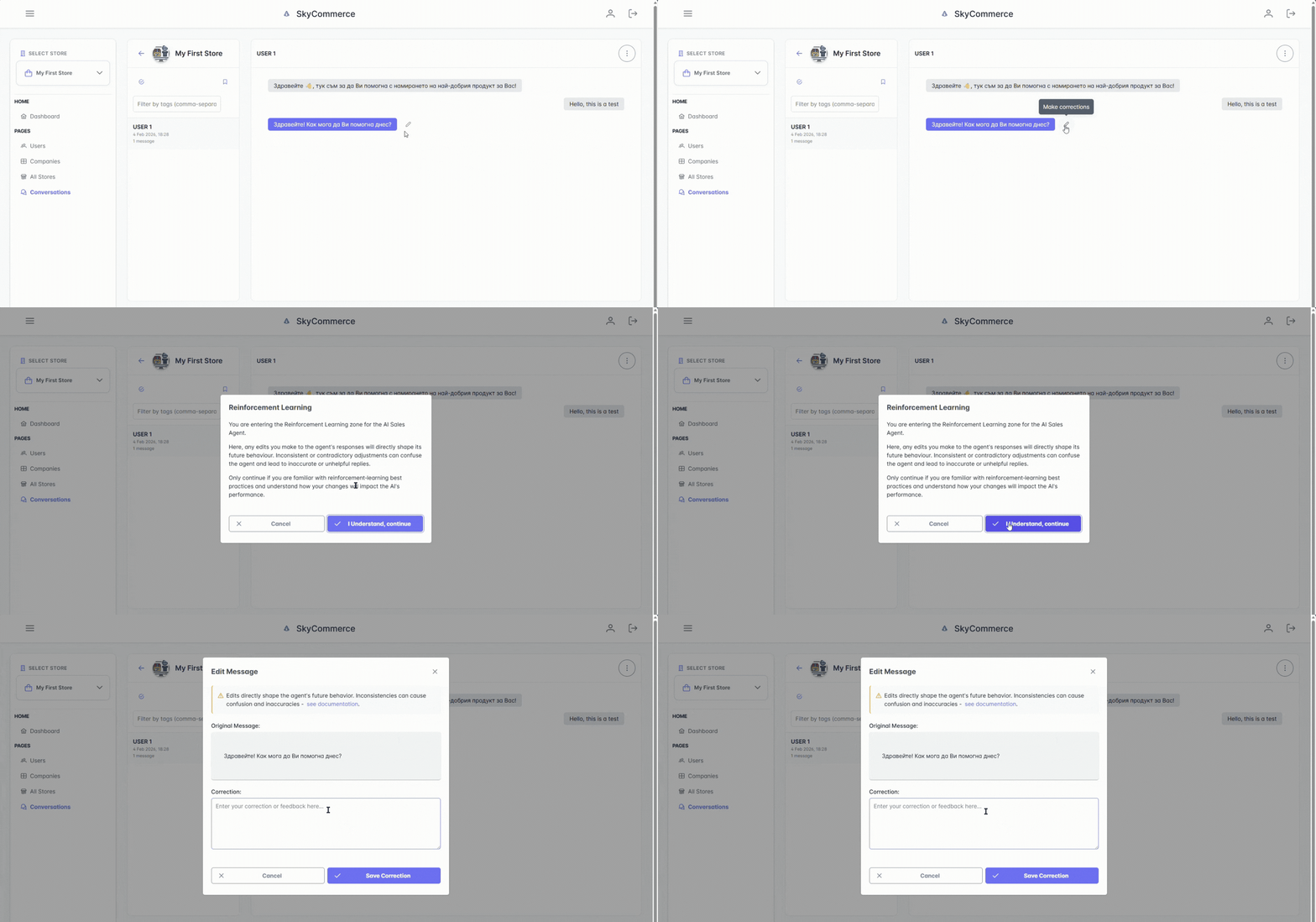
- On the Conversations tab, click the pencil icon (✏️) next to any chat response to make a correction.
- Your correction is sent directly to our team, who will use it to train the agent.
- Next time a customer asks the same or a similar question, the agent will respond according to your correction.
Change store
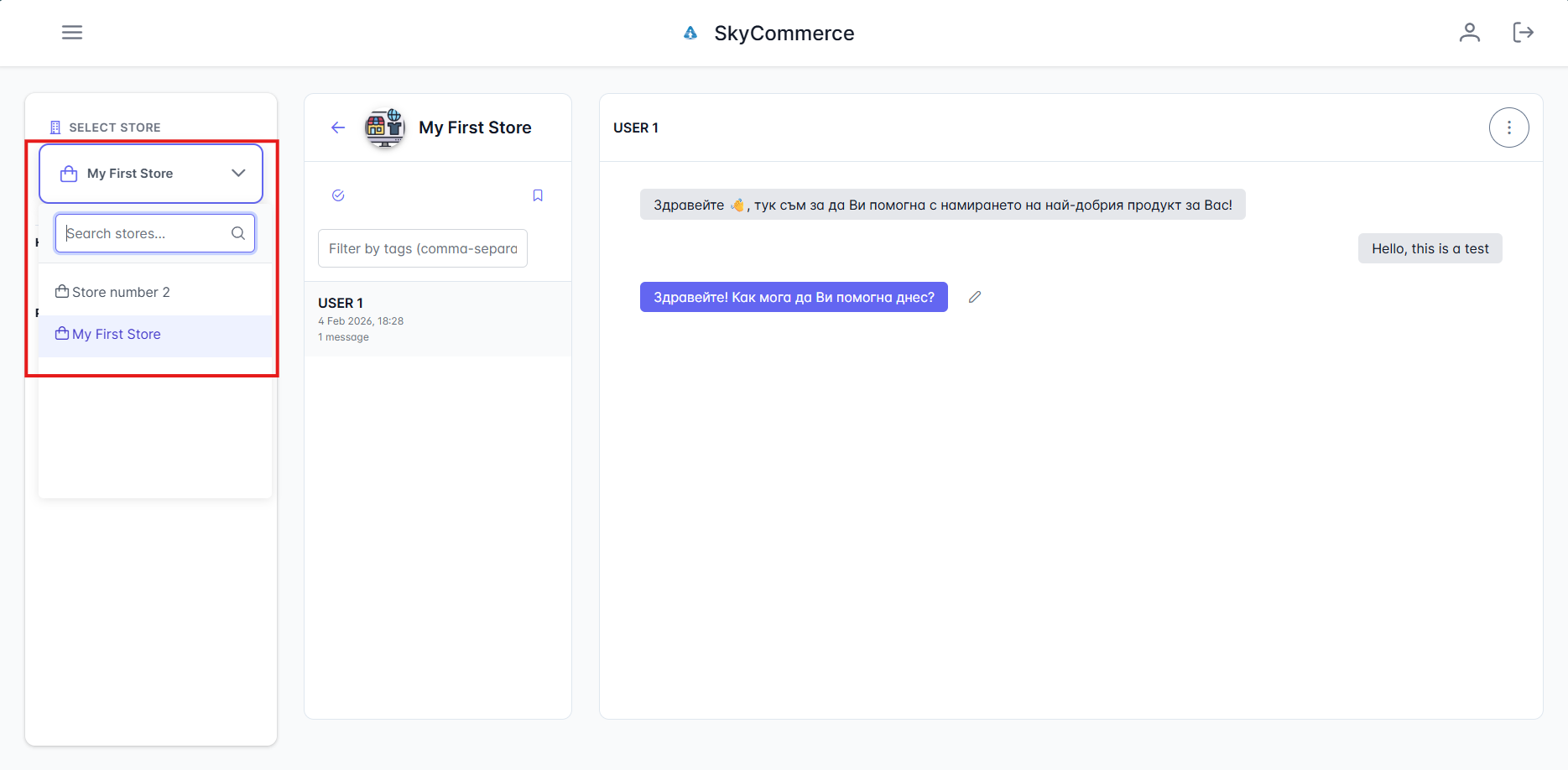
- On the menu on the left side you can change stores to look at conversations for another store.
Admin-Only Actions
- Only admins can:
- delete conversations
- delete stores or
- reset analytics.
- If you need to delete something, please contact us at support@highsky.ai
User Management
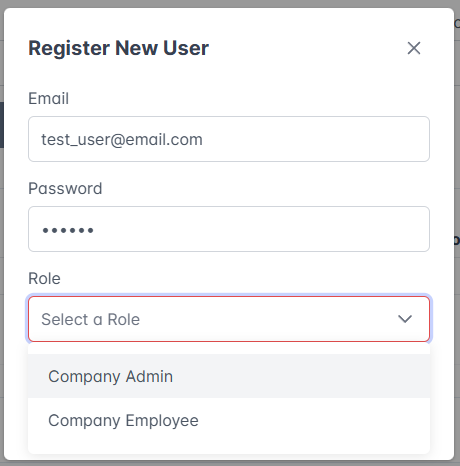
- On the Users tab, you can see all users associated with your company.
- Create a new user.
- Select a role:
- Company Admin can see all conversations and analytics for the company. Can create new users and assign stores to other users.
- Company Employee can see only conversations and analytics for stores that the Company admin or Partner have given them access to. They cannot create new users.
Enable user account
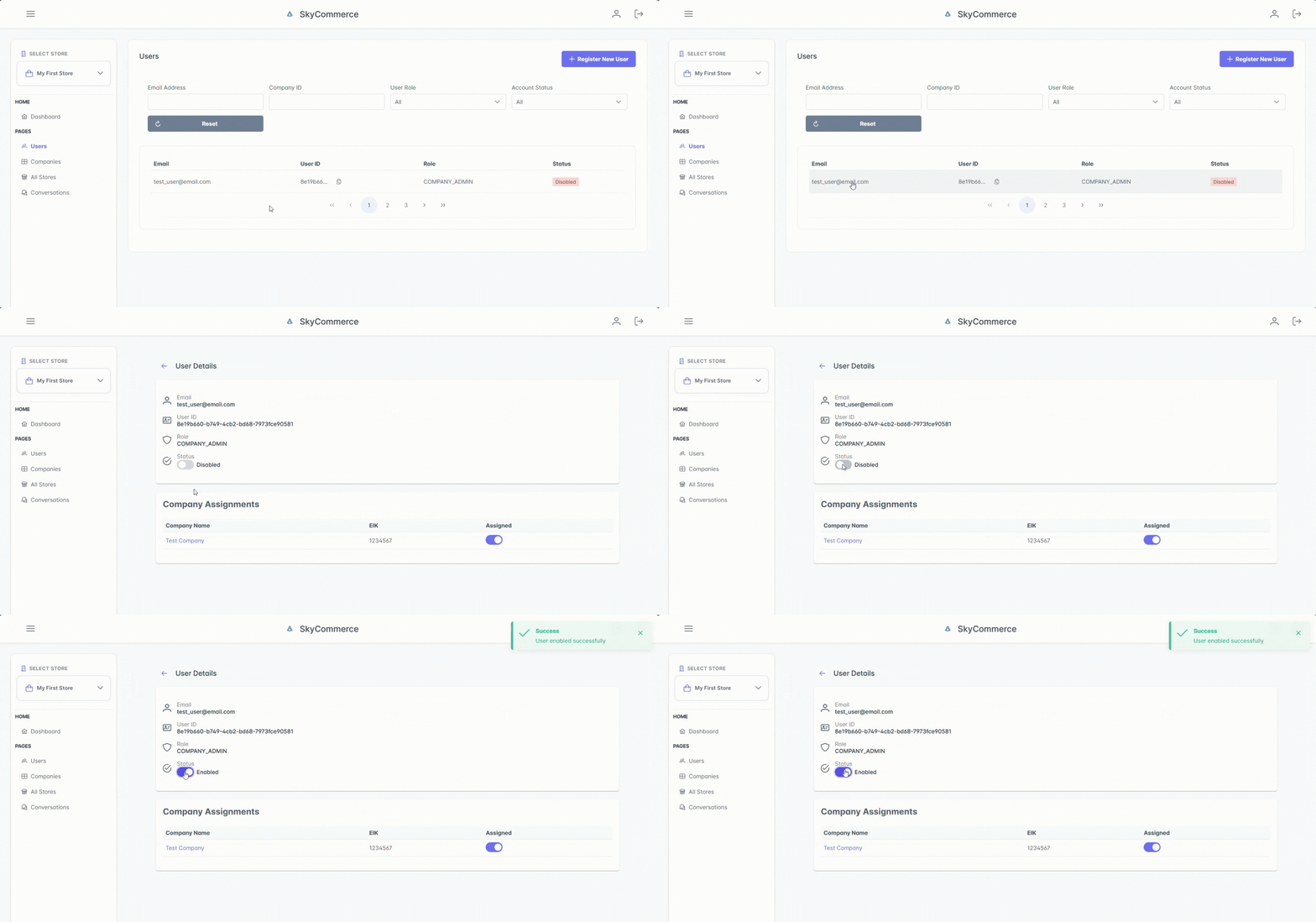
- Click on the user you just created.
- You must enable their account in order for them to login.
Assign user to a company
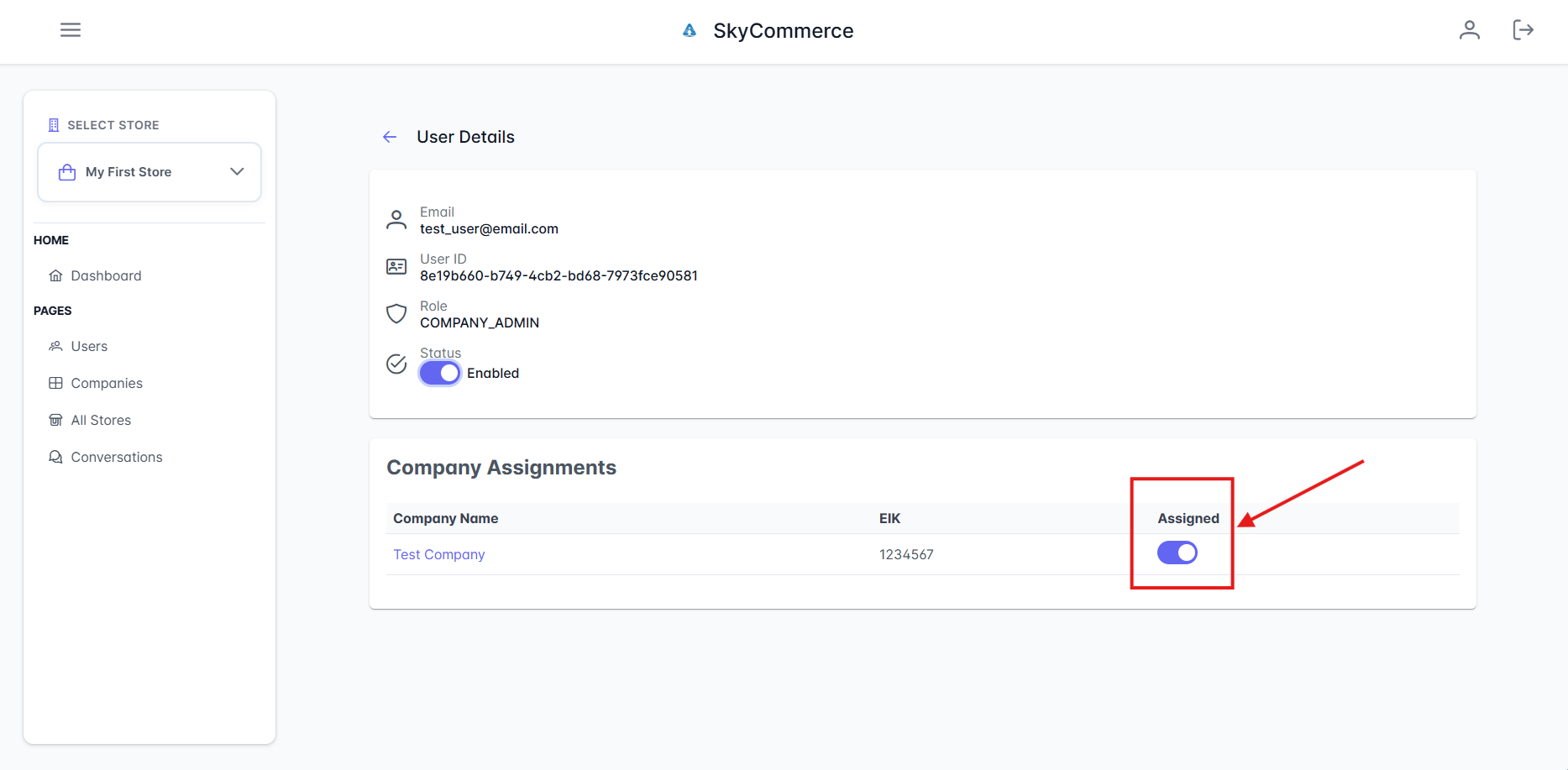
- On the same User Details page, scroll to the Company Assignments section.
- You will see available companies — turn the Assigned toggle on to assign the user to a company.
Assign stores to the user
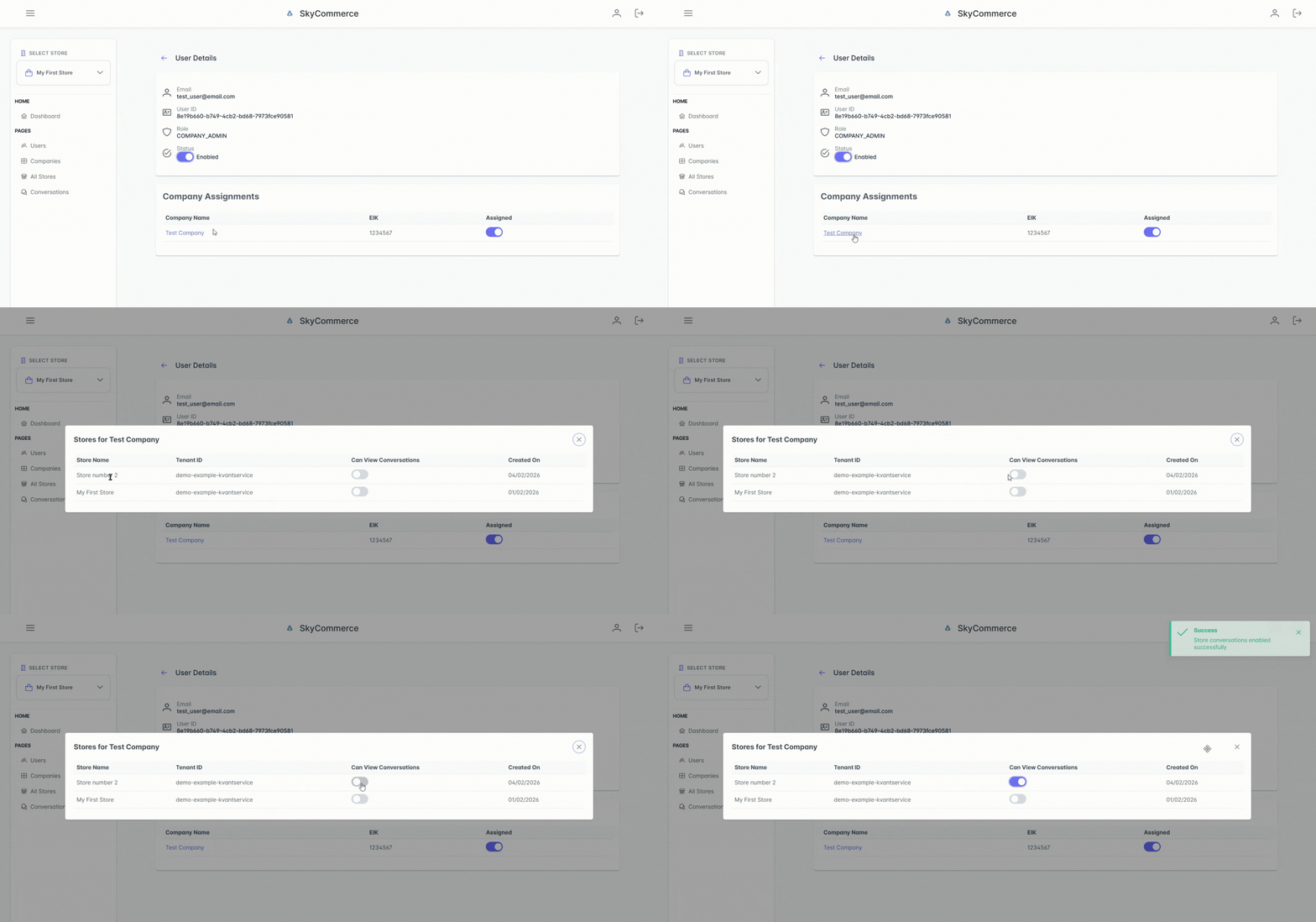
- Click on the company name in the Company Assignments section.
- Assign one or more stores to them using the checkboxes.
- This way they will see conversations and analytics for that specific store.
Delete a user & report issues
- If you would like to delete a user, you must contact us on support@highsky.ai
- If you notice a problem with the admin panel, please report it using this form: Admin Panel